
PowerChat is a privacy-first, bring-your-own-key AI chat app with model configuration options and local per-folder customizable RAG databases. It can be used to generate text and images using cloud models (Gemini, Deepseek, etc.) and local models (through Ollama), or any OpenAI compatible endpoint.
Quickstart
tl;dr
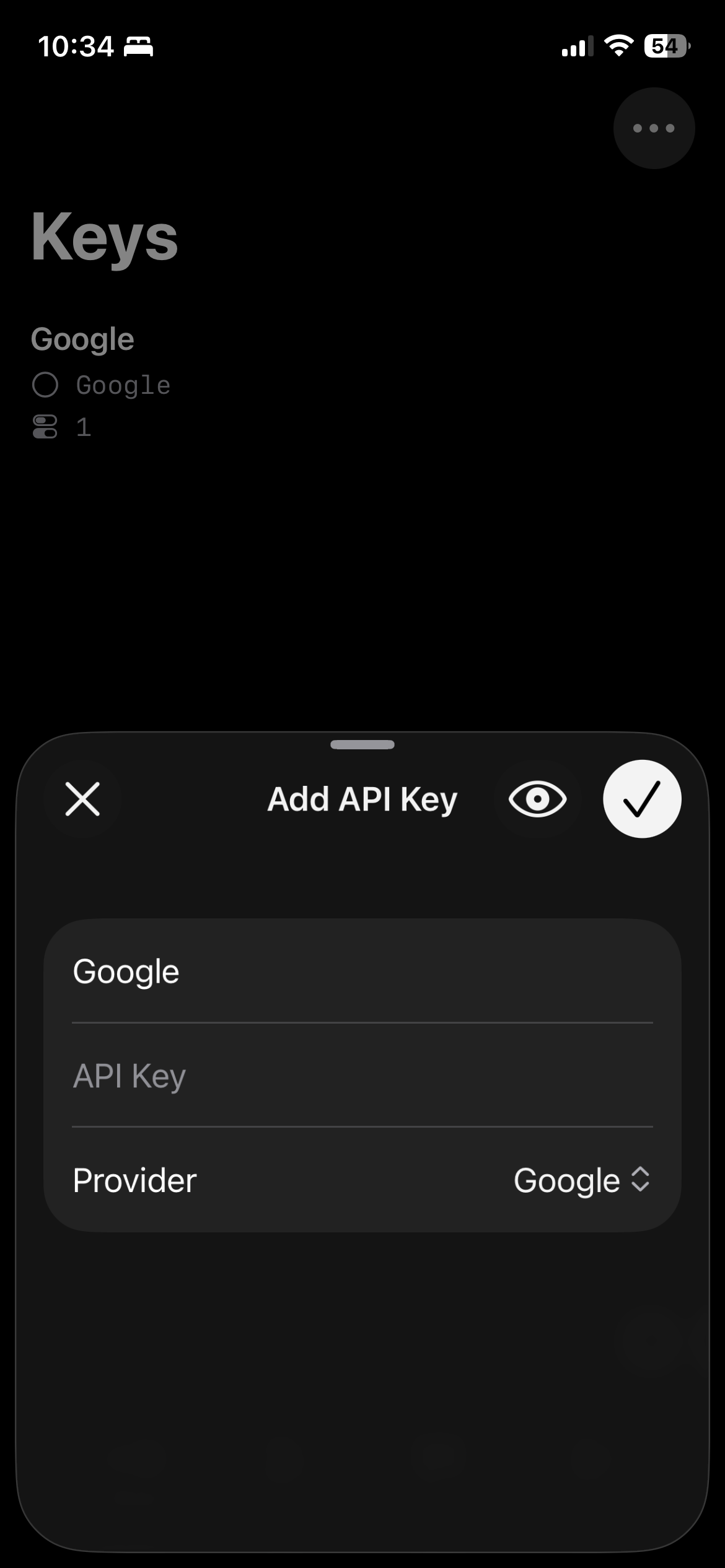
- Add an API key in the Keys tab
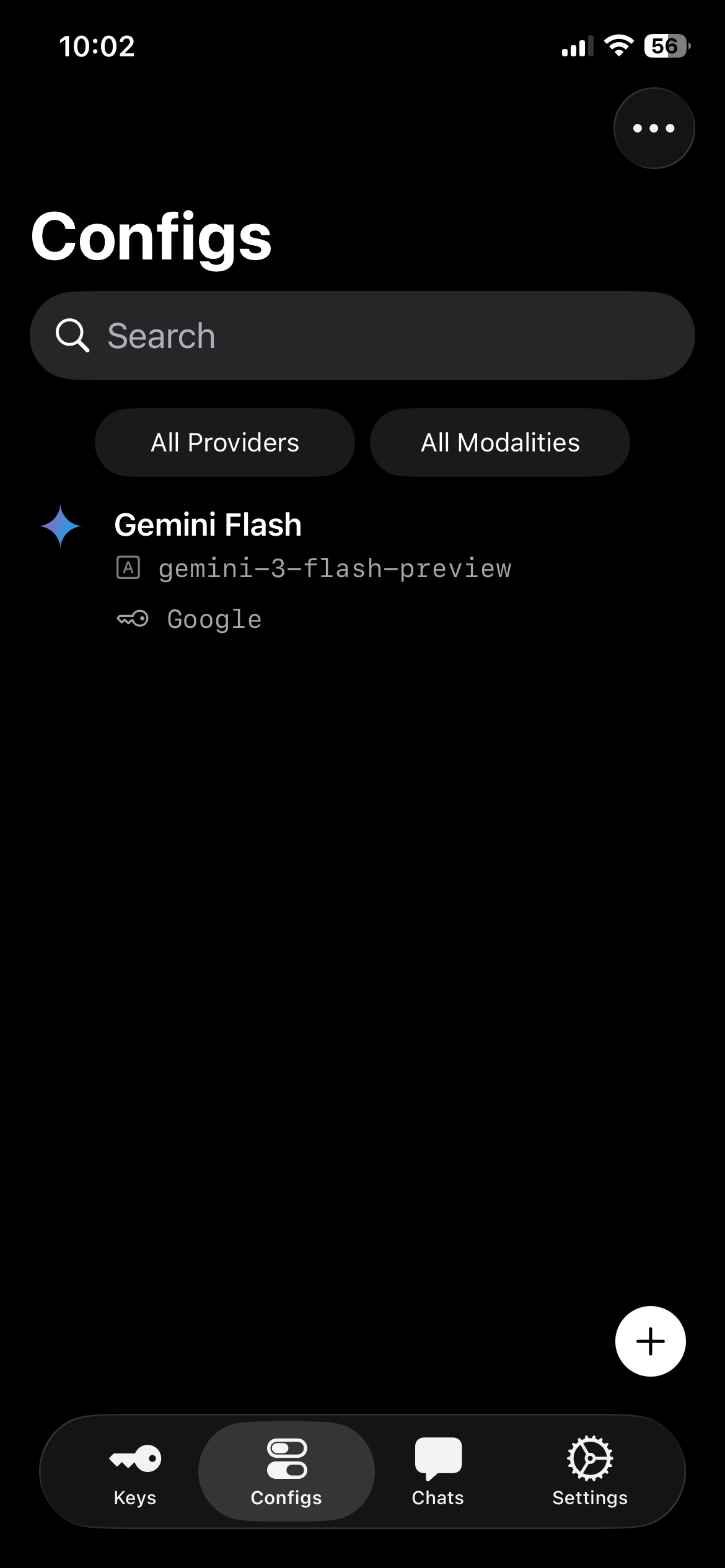
- Add a Config in the Configs tab
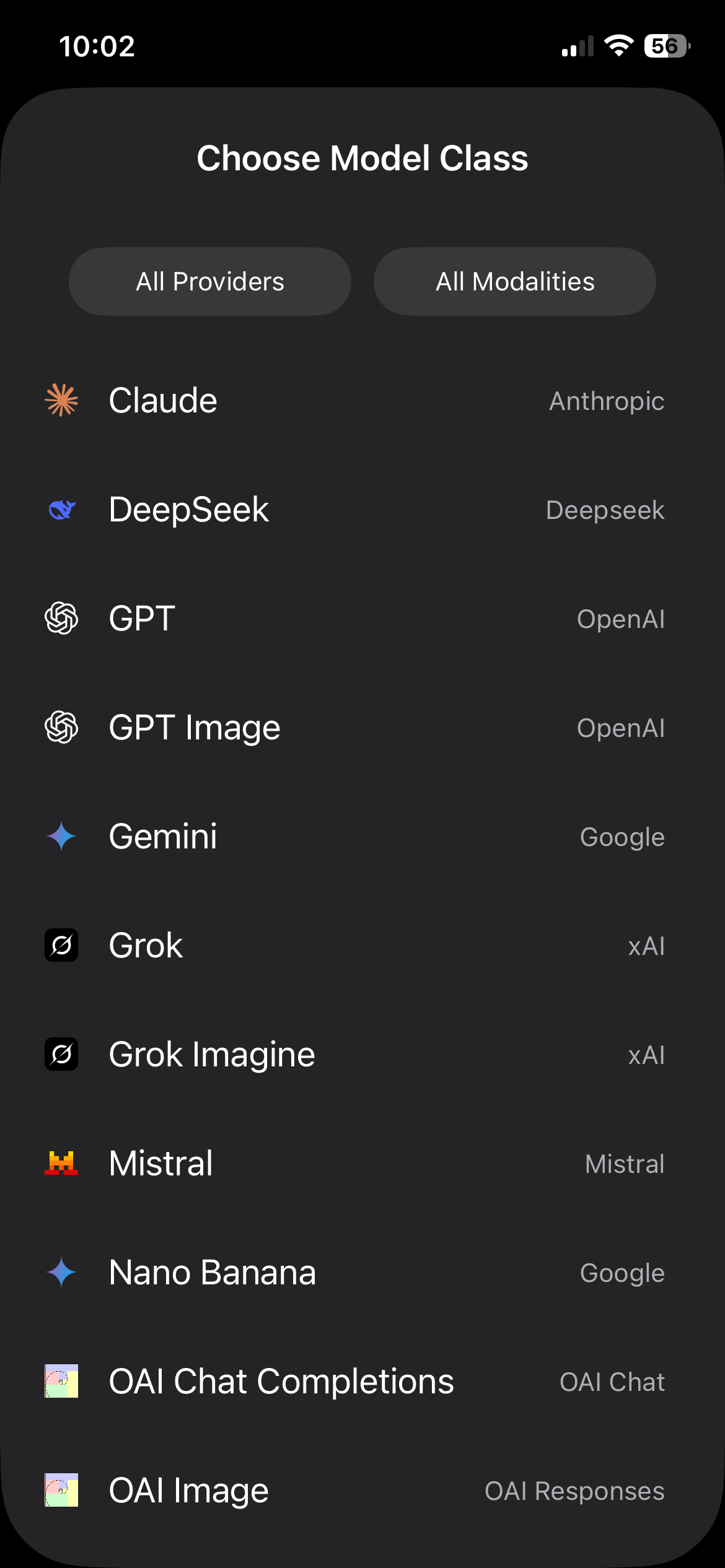
- Select Model Class
- Set the API key
- Create a new chat in the Chats tab
- Set text/image config for the chat
- Start chatting!
Long Version
Open PowerChat
Navigate to Keys tab in the tab bar at the bottom
Tap the plus sign at the bottom right corner to add an API key
Enter the key name, API key, and provider
- Some providers might ask you to enter other details, such as a URL
Navigate to Configs tab
Tap the plus sign at the bottom right to add a config
Choose your Model Class (Claude, DeepSeek, Gemini, etc.)
Doing so will take you to the config view, where you can set the config name, API key, and tweak parameters
- You must set the API key
- Provider of the API key must match the provider of the model, otherwise the key will not show up in the API key picker
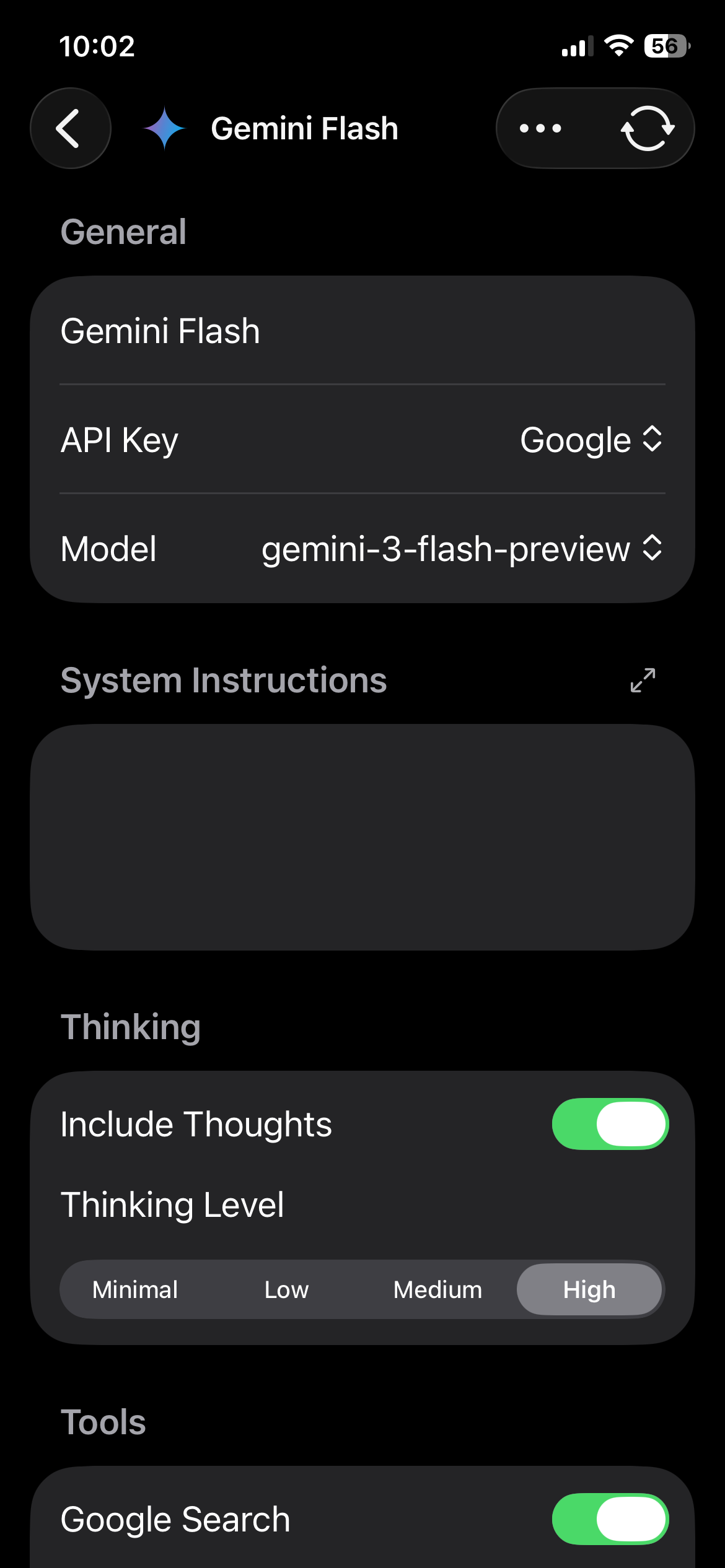
Once configured, exit out of the config view
Navigate to Chats tab
Tap the plus sign at the bottom right to create a new chat
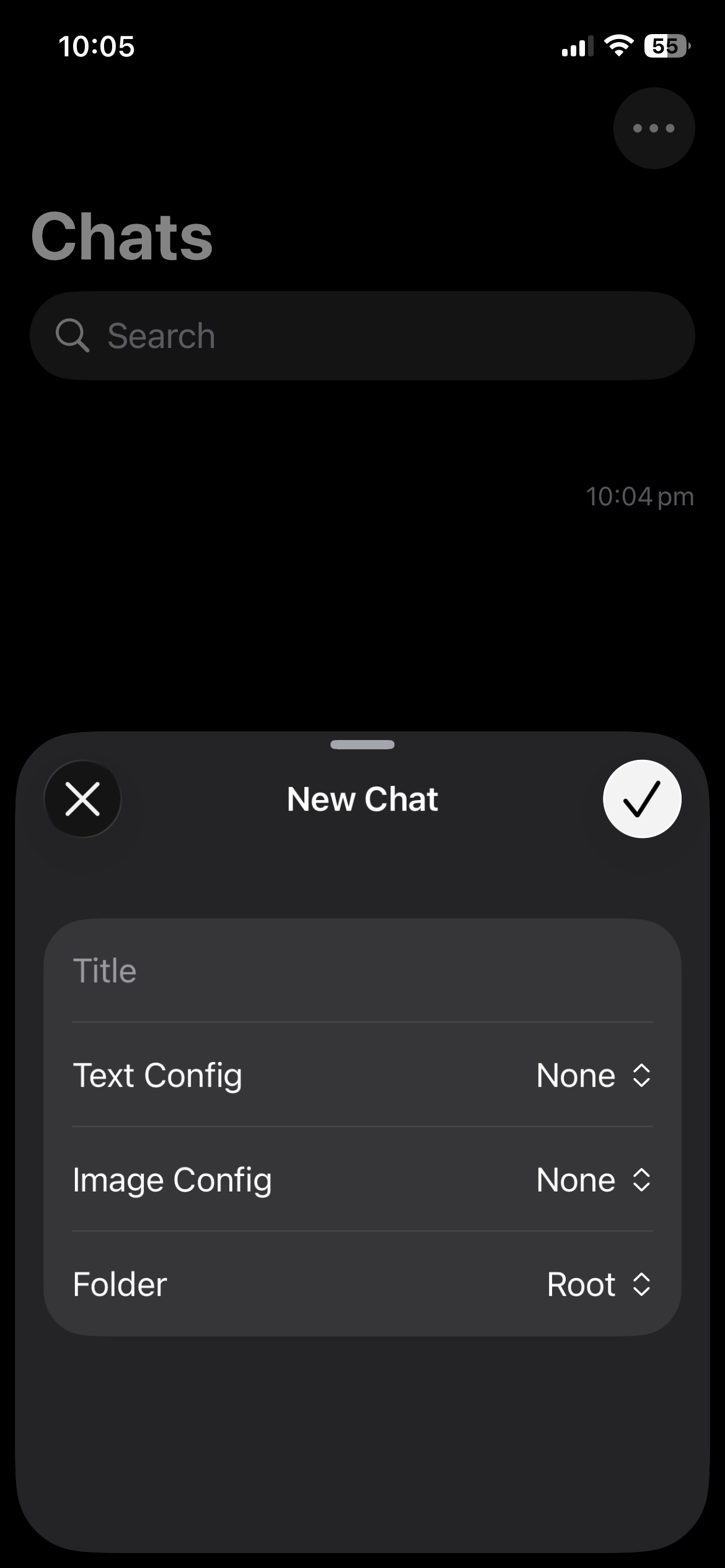
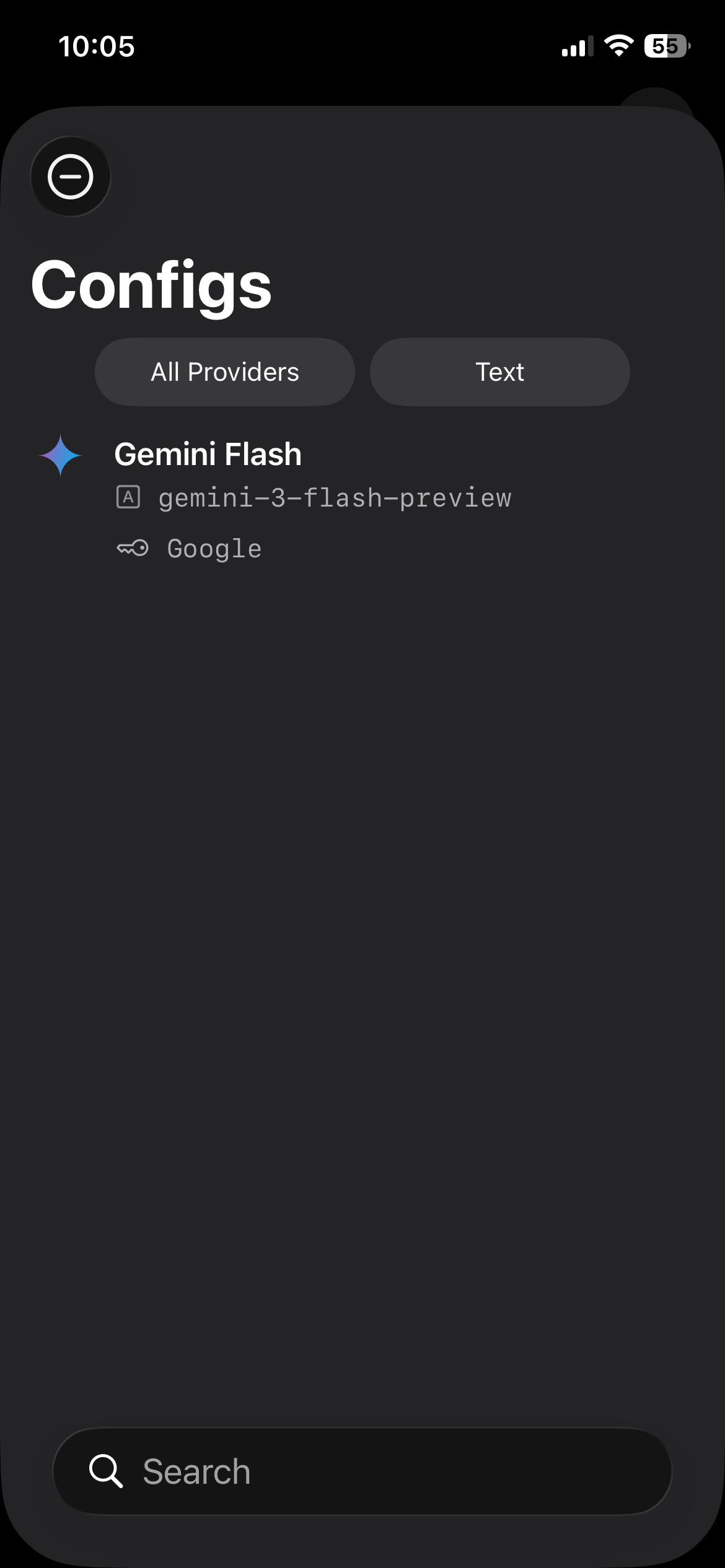
Choose the config you created.
- (Optional) Add a chat title
- (Optional) If you have created a folder, choose a folder for the chat
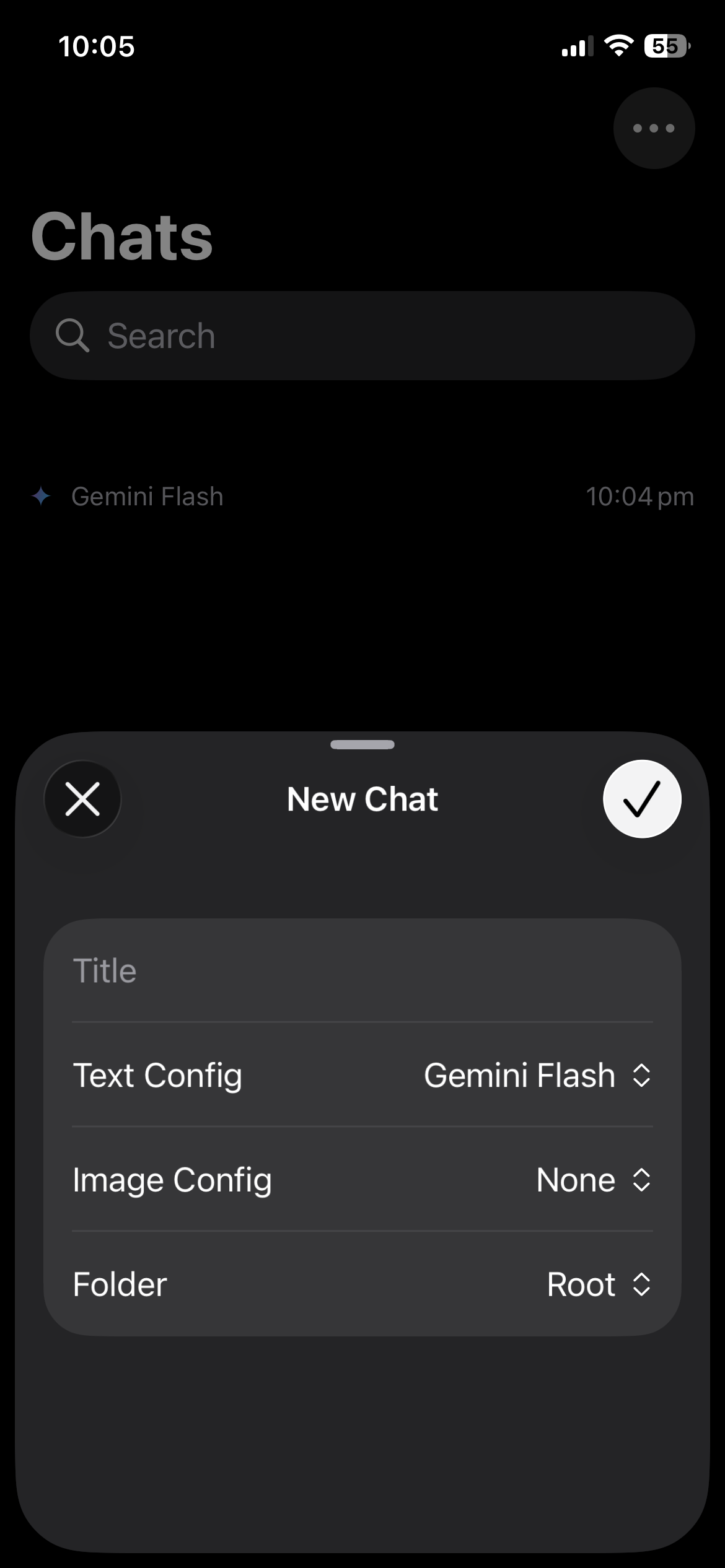
Tap the checkmark to start the chat
Enter your prompt in the message field at the bottom
Tap on the Send button (up arrow) to send the prompt
- (Optional) If you have selected an image model, you can hold the send button to pick the output modality of the model (text or image)